Here is an exciting tip to remove My documents automatically when we log off computer, as we know it is a Virtual sub folder of the user's My Documents folder holds the details of lastly used items in computer.This portion of documents exposes your recent activity to all other users who access to your computer,which may have some private and personal data . we can delte the logs of Recent activity by manually deleting everytime logging off.But this trick lets you to customise automarically clearing of recent documents on log off .For this you need to do some Registry settings>
just follow this steps:
*Click Start --> Run --> Type in regedit
*Navigate to the following key.
HKEY_Current_User > Software > Microsoft > Windows > CurrentVersion > Policies
*Right click on the Right Pane --> New -->Dword Value & name it as ClearRecentDocsOnExit .
*Double Clcik on it & se the value to 1
This will clear the My Recent Documents Folder automatically on logoff.
To stop this activity just delete the Dword value or set the value to 0.
Showing posts with label registry. Show all posts
Showing posts with label registry. Show all posts
Friday, October 8, 2010


Tuesday, August 31, 2010
Enabling Automatic Defragmentation
In the previous post of Defragmentation i presented you a detailed view of fragmentation,advantages and how to do fragmentation.
now here is a way of enabling automatic defragmentation,it makes your work simpler and saves your time while you been working on other tasks.
From the Control Panel
*Start > Control Panel -> Performance and Maintenance.
*Select Scheduled Tasks and double-click on ‘Add Scheduled Task'.
*when this opens in a new window click on the Next button and then Browse to C:\WINDOWS\system32.
*Click defrag.exe and then the Open button.
*Now give it a name and set the frequency with which the defrag must run. Follow it to Finish.
*An icon with the name you have given appears in the right pane. Right click on the icon and select Properties.
*In the Run text box, you can add the drive you want to defragment like this: C:\WINDOWS\system32\defrag.exe d:
*Click the OK button and the task will be executed at the scheduled date and time.
From Registry.
we can also shedule this by registry,but you should be a bit extra careful as you are dealing with registry.
*click Start Menu -->Run.
*Type "regedit" and hit Enter.
*In the registry editor select HKEY_LOCAL_MACHINE.
*Navigate to Software\ Microsoft\ Dfrg\ BootOptimizeFunction.
*In the right pane check ‘enable' is present or else create a new one by right clicking in the right pane and select New-> String value.
Type in Enable.
*Now double-click on Enable to bring up a box where you can change the values(set a value).
*Type ‘N' to disable the automatic defrag program or ‘Y' to enable the disk fragmentation to happen automatically.
*close the wizard and restart the windows.
Thursday, July 8, 2010
speed up pc
Does your pc running like a snail
here are the some of the tips to speed up your pc and make it run faster like a leopard.
1)remove unwanted applications.all annoying unnecessary software which makes pc slower
2)clean up recyclebin .free up the memory using system tool disk fragmenter
go to start -->all programs -->accesories-->systemtools-->disk fragmenter.
 this tool saves a lot of memory.
3)use good updated antivirus
4)keep in update your windows which assures of great performance.
5)keep the desktop clean with minimum no of shortcuts.
6)use a software called ccleaner to clean up the cookies ,internet files etc
 7)fix registry errors
8)there is another interesting tip to make your pc faster ,this just decreases the delay of your pc
start-->run-->regedit-->HKEY_CURRENT_USER -->control panel folder-->desktop folder-->in registry setting options you will find menu show delay right click and select option "modify"
 next you may notice edit string option change the default(400) value to any number between (0 to 400),keep the value as minimun as possible.
restart computer --> then you can see magic,your pc more faster than ever.
although registry editing is not new you can find more info about this in microsoft's support page: http://support.microsoft.com/kb/216445
here are the some of the tips to speed up your pc and make it run faster like a leopard.
1)remove unwanted applications.all annoying unnecessary software which makes pc slower
2)clean up recyclebin .free up the memory using system tool disk fragmenter
go to start -->all programs -->accesories-->systemtools-->disk fragmenter.

3)use good updated antivirus
4)keep in update your windows which assures of great performance.
5)keep the desktop clean with minimum no of shortcuts.
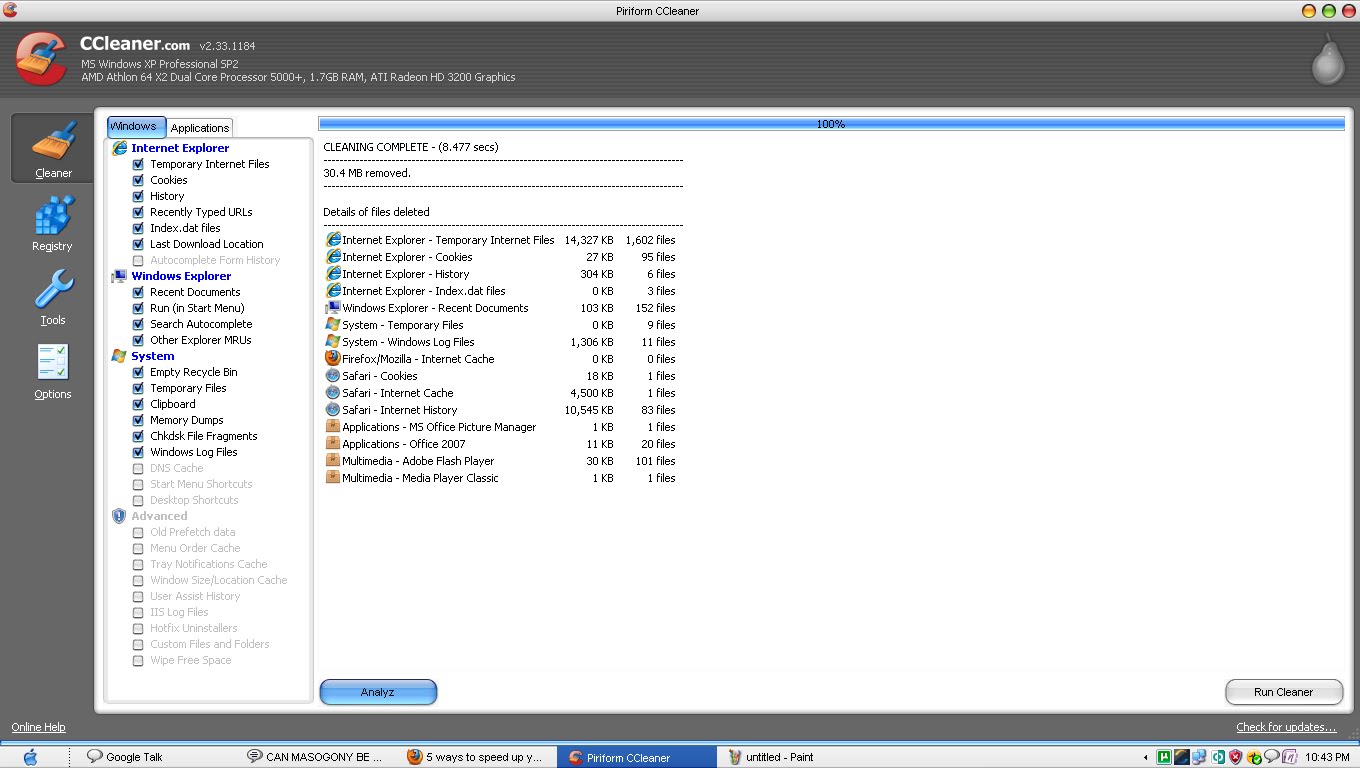
6)use a software called ccleaner to clean up the cookies ,internet files etc
8)there is another interesting tip to make your pc faster ,this just decreases the delay of your pc
start-->run-->regedit-->HKEY_CURRENT_USER -->control panel folder-->desktop folder-->in registry setting options you will find menu show delay right click and select option "modify"

restart computer --> then you can see magic,your pc more faster than ever.
although registry editing is not new you can find more info about this in microsoft's support page: http://support.microsoft.com/kb/216445
Wednesday, July 7, 2010
Registry Editing Has Been Disabled By Your Administrator
Registry Editing Has Been Disabled By Your Administrator
step by step procedure for fixing this problem
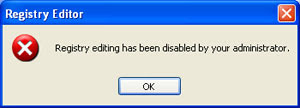
this problem occurs when computer gets infected with a virus, trojans.
when you type the command Regedit, you get message the Windows Registry
Editor being disabled.
there are so many methods to deal with this problem
if you are using windows xp i suggest to use this
1. Click Start, Run
2. Type GPEDIT.MSC and Press Enter
3. Go to the following location
User Configuration
Administrative Templates
System
4. In the Settings Window, find the option for "Prevent Access to Registry Editing Tools" and double-click on it to change.
5. Select Disabled or Not Configured and choose OK
6. Close the Group Policy Editor and restart your computer
7. Try opening REGEDIT again
you can use symantec's tool to slove this
Use Symantec's tool to reset shell\open\command registry keys
download the UnHookExec.inf file to your desktop. Right-click on it and choose Install. Restart your computer and then try to open the Registry Editor.
step by step procedure for fixing this problem
this problem occurs when computer gets infected with a virus, trojans.
when you type the command Regedit, you get message the Windows Registry
Editor being disabled.

there are so many methods to deal with this problem
if you are using windows xp i suggest to use this
1. Click Start, Run
2. Type GPEDIT.MSC and Press Enter
3. Go to the following location
User Configuration
Administrative Templates
System
4. In the Settings Window, find the option for "Prevent Access to Registry Editing Tools" and double-click on it to change.
5. Select Disabled or Not Configured and choose OK
6. Close the Group Policy Editor and restart your computer
7. Try opening REGEDIT again
you can use symantec's tool to slove this
Use Symantec's tool to reset shell\open\command registry keys
download the UnHookExec.inf file to your desktop. Right-click on it and choose Install. Restart your computer and then try to open the Registry Editor.
Subscribe to:
Posts (Atom)
